![operabase-logo.png]](https://help.operabase.com/hs-fs/hubfs/Operabase%20Logos/operabase-logo.png?height=29&name=operabase-logo.png)
To add a performance to your Operabase profile, follow these steps:
- Log in and click on “Manage Profile” on your Operabase profile (you can click on the dropdown arrow on the right by your email address to access you profile).
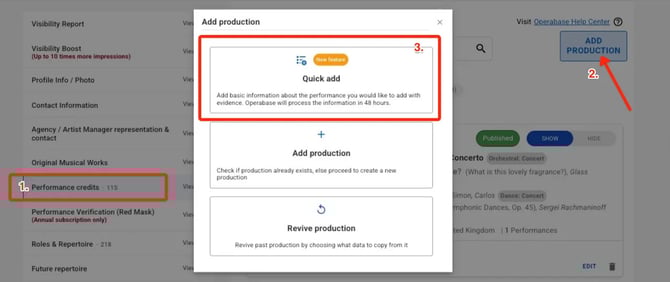
- Scroll to “Performance credits”
- Search for the production on your schedule by typing its name in the search bar. Ensure you check if the production or musical work has already been documented on Operabase, as we have documented all performances since 1996.
- If the production is not on your schedule, click on “Add production” and select one of the three options provided: Quick Add, Add production, or Revive production:
Option 1: Quick Add - best for fast submission
Provide basic information on the performance and submit proof of participation (official website links or programmes).
Our team will review the submission and you will be notified once this process has been completed.
Option 2: Add production - if it's already on Operabase
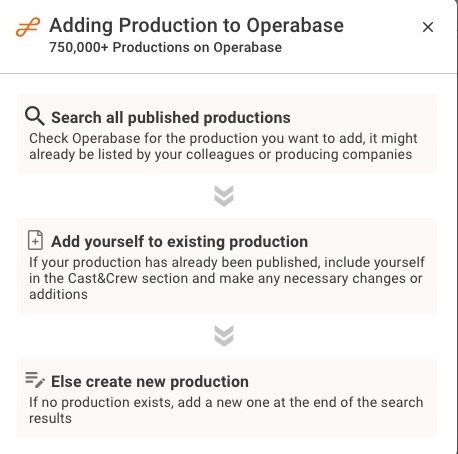
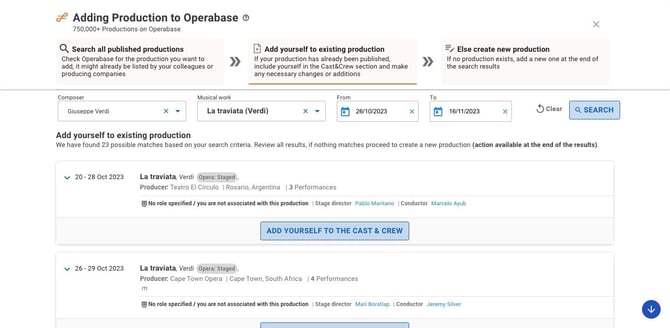
Click on Add a production and search for the production in our system. You will get a full list of already published productions that match the filters you’ve selected. Please scroll through the entire list before adding a duplicate / new production. Fill in as many filters as possible to narrow your search.
Select the production from the list. Click the arrow near the date to expand the details on that production. Once you’ve check the details, click Add yourself to the cast & crew.
You will be warned that you are about to edit an already published, verified performance (red mask) - therefore your edits will need to be supported by proof.
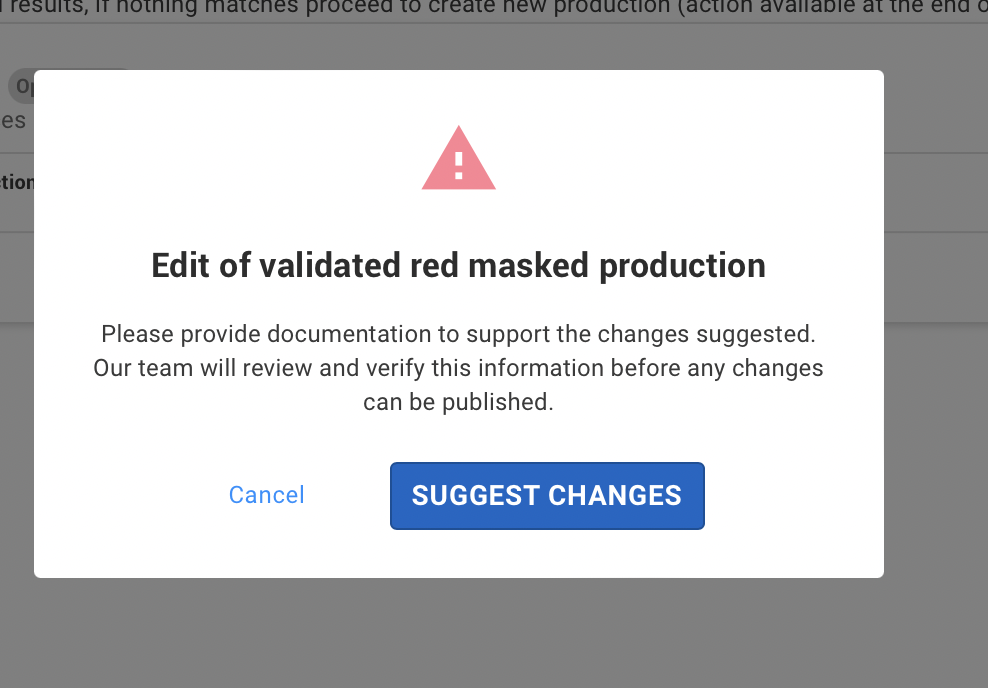
Click Suggest changes to proceed.
You will be redirected to the production. Under the Cast & Crew section add your name to the correct role in the cast & crew section.
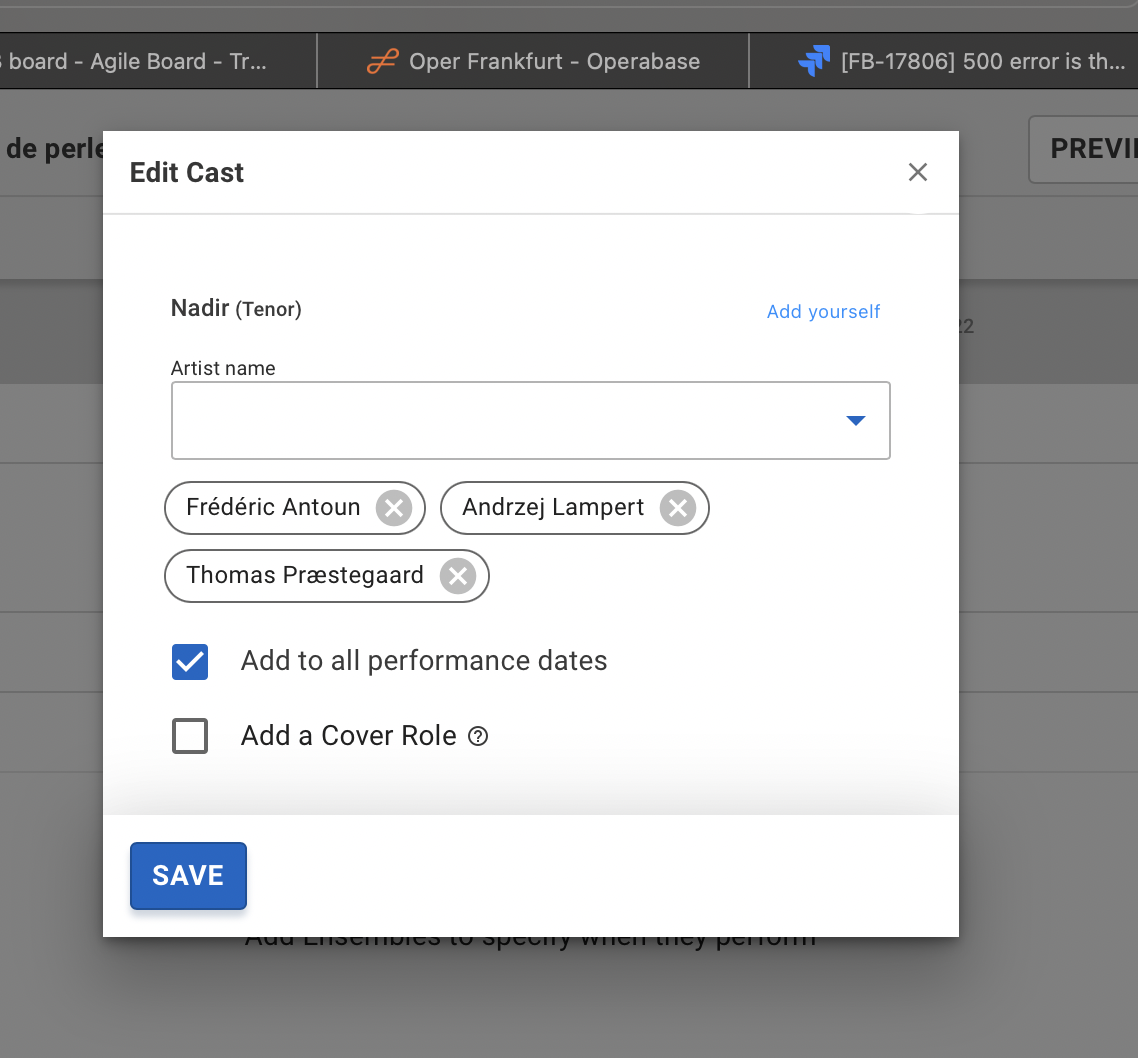
(To see how to add yourself to the cast & crew click here).
Ensure you select the dates that you will be performing so that the entry reflects on your repertoire.
Once finished, click on the Submit changes.

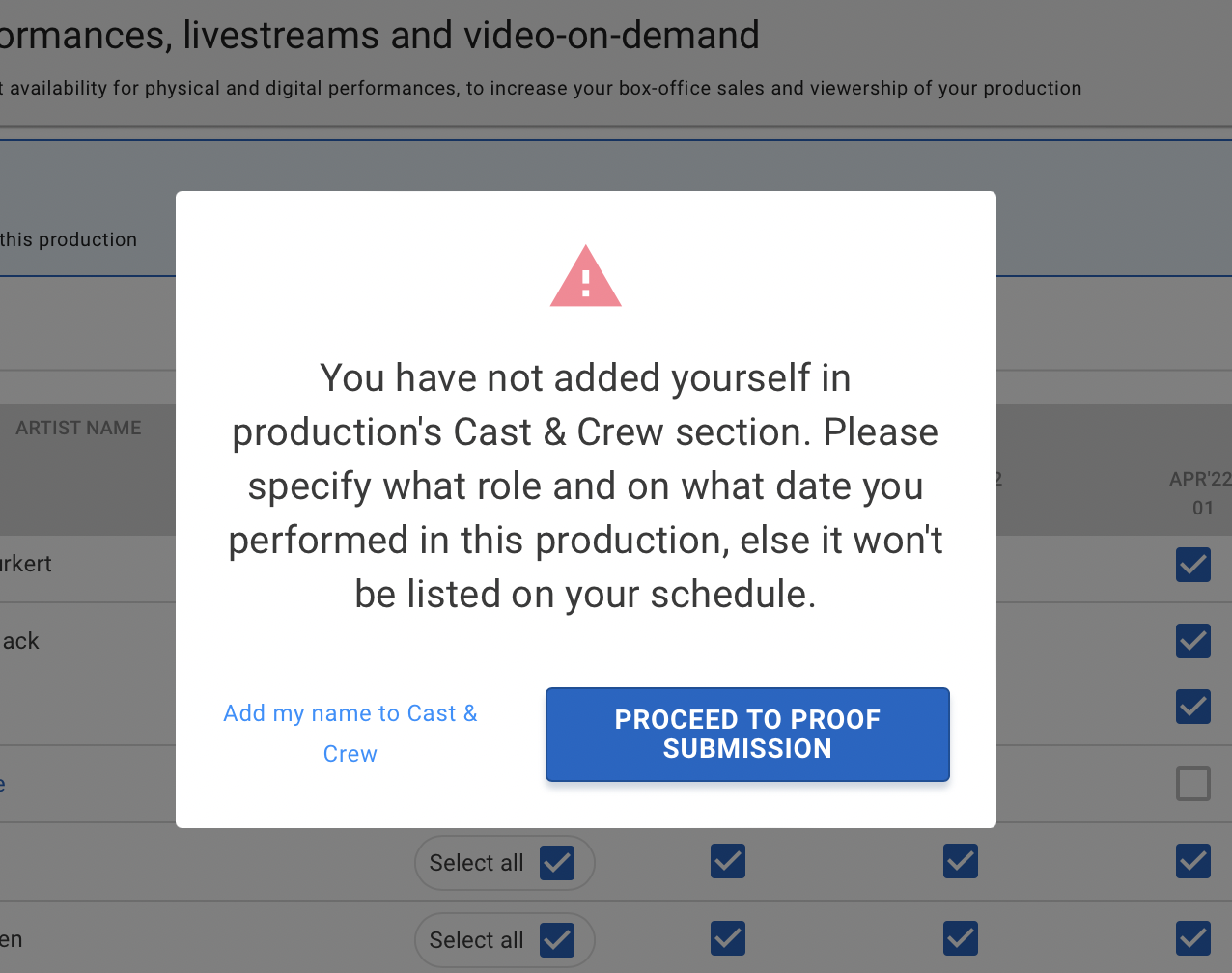
You will be notified that you are required to provide proof of participation. Click Provide proof to proceed to the proof submission screen. You will also be warned if you forgot to add yourself to the cast & crew (see below).
Please add at least one out of four available types of proof, then button Submit changes will be enabled, click Submit changes to complete the process.
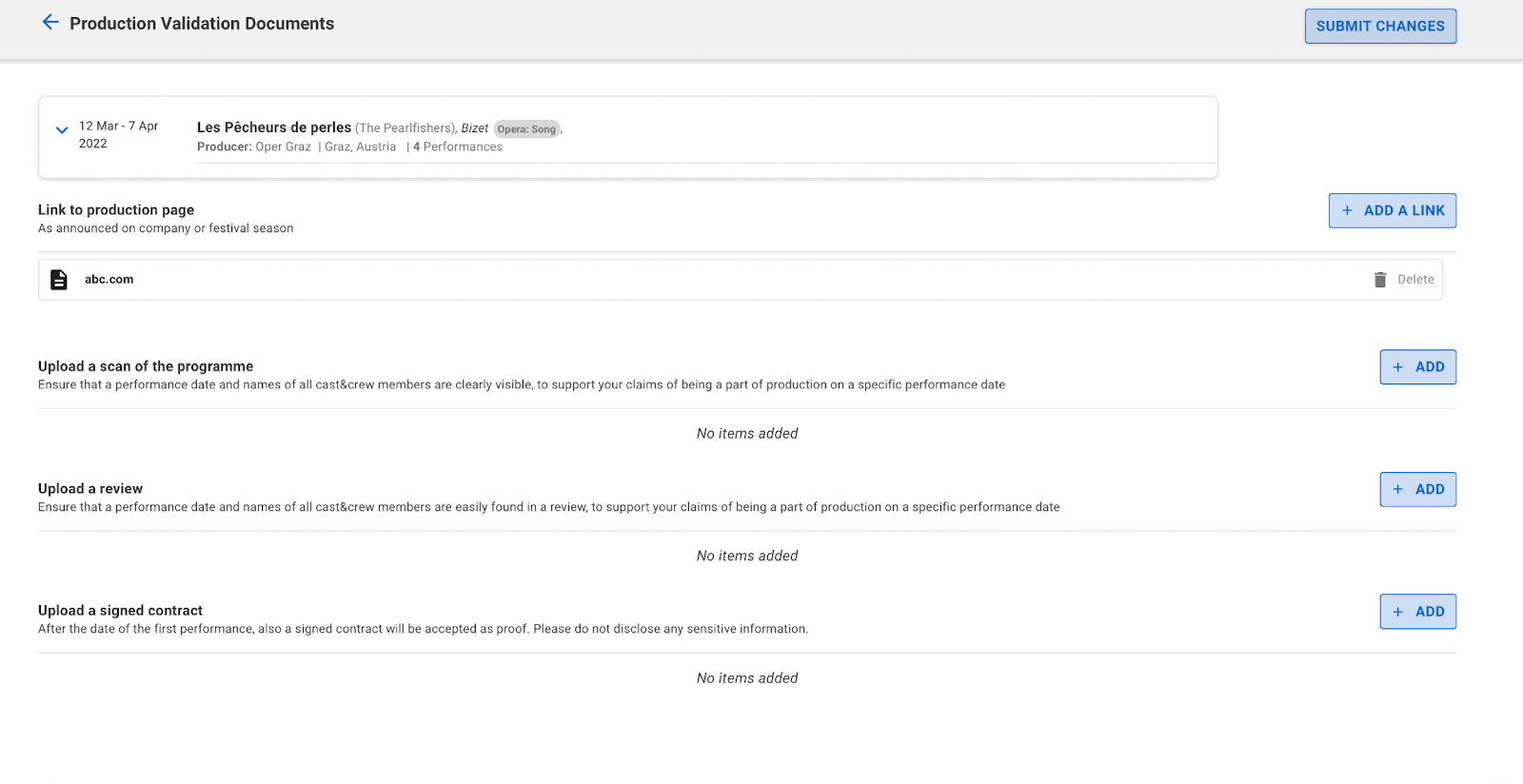
The Operabase team will review your documents and confirm the changes. Please note that the production will not appear in your schedule until the changes you submitted have been approved by Operabase. Your association with the production must be supported by proof so that our team can review and approve.
Option 3: Create New - if the production is not on Operabase
Once you have searched for the production in our system and it does not appear, click on Create New.
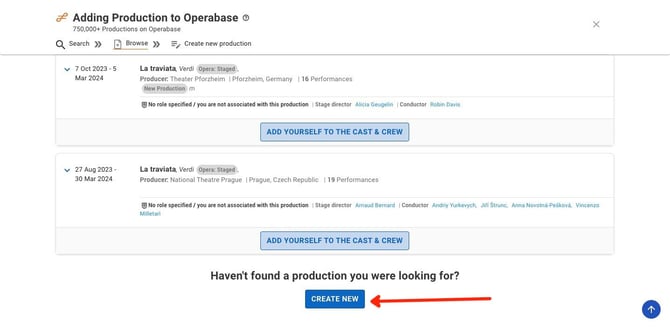
The process has multiple steps and you will need to include as much information as possible in order to be able to publish the production.
- Add a musical work by clicking on Add musical work details and add the composer and musical work.
- Indicate how the work is performed.
- If the production has a custom title, please include it in the Production custom title field.
- Select the Producer of the production (Company, Festival or Other). You can search the name in the search bar or create a new entity if it is not listed on our platform.
- Add a website link for the production in the Tickets & sale dates section.
- Select the performance date/dates (you can also indicate if there is a live stream date and for past productions, you have the option to add a full performance video).
- Add your name to the Cast & Crew. Please note, if you have added multiple musical works, you will need to add your name to each work. This step is very important to make the roles visible in your repertoire.
- Please check each tab and add more information to the production such as videos, photos, reviews and more.
- Click on Publish once you're done.
- If you are not ready to publish the production and would like to continue editing it at a later date, please click on drafts to view the production and continue editing.
Please note, the production added will need to be validated by our team to ensure accuracy of data displayed. Once approved, the production will be visible.
Option 4 - Revive production
Many popular works from the repertoire are revived each season. Please use this feature to add a production unless it is a musical work that has never been performed at the company / festival.
- You can either search within your schedule or across Operabase. Add details to narrow your search and confirm which production by expanding the search results.
- Once you have identified the production you'd like to add to your schedule, select it and choose what information you'd like copied over.
- Add details to the relevant sections remembering to indicate / select the dates that you will be performing.
- Once you're done click on Publish.
- If you are not ready to publish the production and would like to continue editing it at a later date, please click on drafts to view the production and continue editing.
Please note: if you have added yourself to an existing verified (red masked) production on Operabase, our team will need to verify and approve your participation in the production. You will see Red mask validation in progress indicated on the production.